 Optimize for Sheets
Find the best answer in your spreadsheet
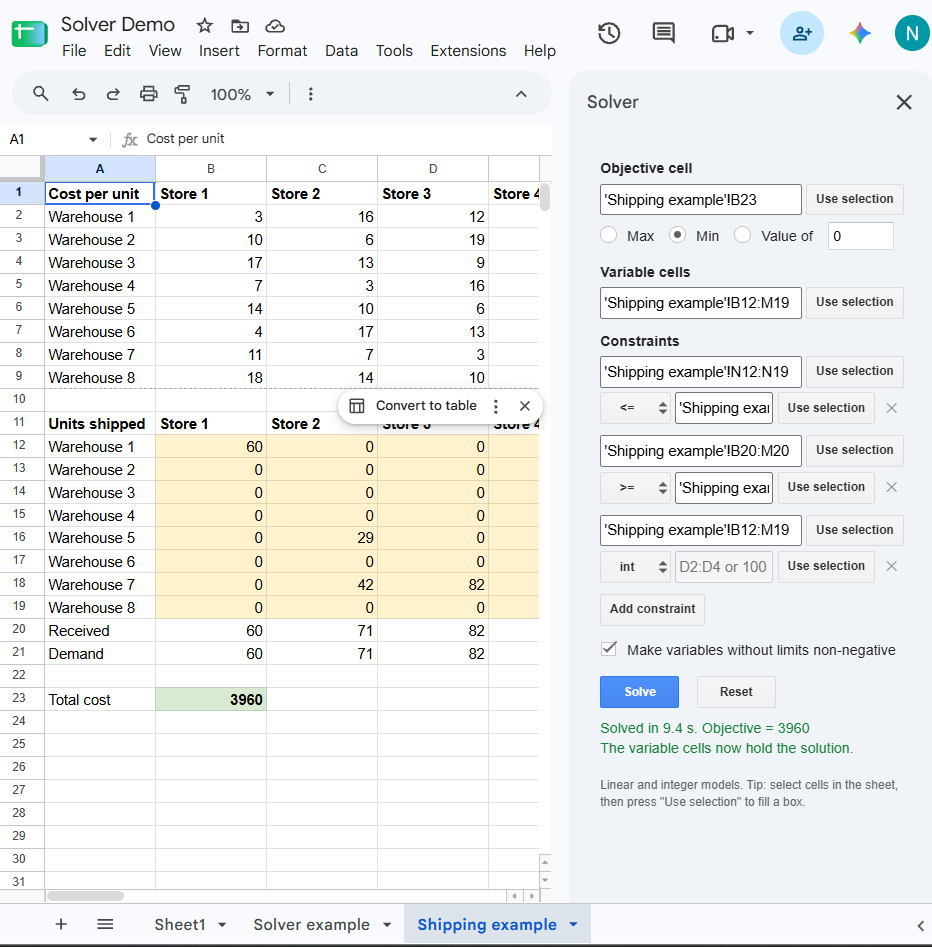
Optimize for Sheets is an Excel-style solver for Google Sheets. Pick a cell to maximize or minimize, the cells it may change, and the limits, then press Solve. It handles linear and integer models: product mix, shipping, staffing, scheduling, budgets and blending.
Why it is different
- Correct answers. Every model is solved by HiGHS, a leading open-source optimization engine, and the result is checked against your sheet's own recalculation before it is written back.
- Fast. It reads the model straight from your formulas instead of changing one cell at a time, so a 100-variable model solves in seconds.
- Private. Solving happens inside your browser. Your spreadsheet data is not sent to any server of ours.
- Familiar. Objective, variable cells, and constraints with <=, >=, =, integer and binary work like Excel's Solver.
Get started
- Install Optimize for Sheets from the Google Workspace Marketplace.
- In any spreadsheet, open Extensions → Optimize for Sheets → Load example to see a ready-made model, or Open Optimize to set up your own.
- Set the objective cell (a formula), choose Max, Min or Value of, and select the variable cells (plain numbers the solver may change).
- Add constraints. The left side is a cell or range of formulas; the right side is a number, a cell, or a range of the same size. Use
intorbinto make variable cells whole numbers or 0/1. - Press Solve. The variable cells are filled with the best solution.
What it supports today. Formulas built from
+ - * /, SUM, SUMPRODUCT, AVERAGE and IF on fixed conditions are read directly. Other functions still work: Optimize reads those models by recalculating the sheet, which is slower. Models where variables multiply each other (nonlinear models) are reported clearly rather than solved incorrectly.
Support
Found a model that solves wrong, or need a feature? Open an issue with a copy of the sheet (remove anything private) and the message you saw. We read every report.